Your customers no longer only Google you. Many of them now ask ChatGPT, “Which agency should I hire?” or “Is this brand trustworthy?” and act on the answer. Until now, businesses had no official way to tell ChatGPT who they are.
That changed on 10 November 2026. OpenAI launched Businesses in ChatGPT in beta, and with it ChatGPT Business Hub: a place where you can claim your business, keep its details accurate and see how often ChatGPT mentions you.
We tried it ourselves. When the DigiBirds360 team searched for our own agency in Business Hub, ChatGPT already had a listing for our Faridabad office, ready to claim. In this guide, we explain how to submit your website to ChatGPT step by step: what to keep ready, how verification works, what the blue badge means and how to read the new insights. We also share our honest take on what this means for SEO and GEO (Generative Engine Optimization).
What Is ChatGPT Business Hub?
ChatGPT Business Hub is the business-facing dashboard inside ChatGPT. You open it from the ChatGPT sidebar, find or add your business, prove that you represent it, and then manage what ChatGPT knows about you from one place.
According to OpenAI’s launch announcement, Business Hub does three main jobs:
- Claim your business: prove you own or represent the brand.
- Manage your information: website, description, category, logo, cover photo, delivery and return policies, and product feeds.
- See insights: mentions, website clicks, and discovery topics from ChatGPT answers.
Eligible US ecommerce and online-service businesses can also build a business agent, a labeled chat that answers customer questions about products and policies.
Three things it is not:
- It is not the same as a ChatGPT business or enterprise workspace you buy for employees.
- It is not an ads product. You don’t need an Ads account to claim a business.
- It is not a ranking switch. OpenAI states that claiming does not guarantee more visibility, and advertising does not influence ChatGPT’s independent answers.
Why It Matters: ChatGPT Business Hub vs Google Business Profile
The biggest difference is that ChatGPT Business Hub welcomes online-only businesses. Google Business Profile lists online-only brands as ineligible in its eligibility guidelines. SaaS tools, D2C brands, agencies, publishers, and fintech apps finally get an official profile on a major AI platform.
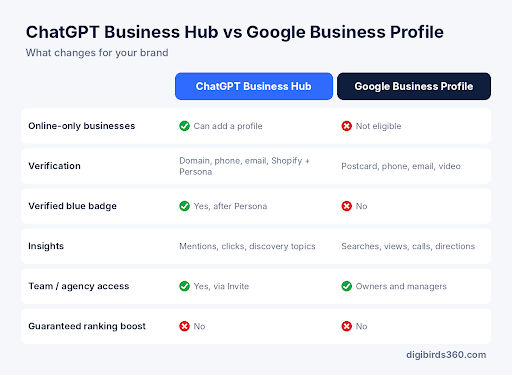
For Indian brands, this is an early-mover window. Most competitors have not claimed their profiles yet, so being accurate and verified now builds a cleaner record for ChatGPT to rely on.
What to Prepare Before You Submit Your Website to ChatGPT
Keep these ten items ready before you start. Most failed verifications happen because the name or address doesn’t match official records.
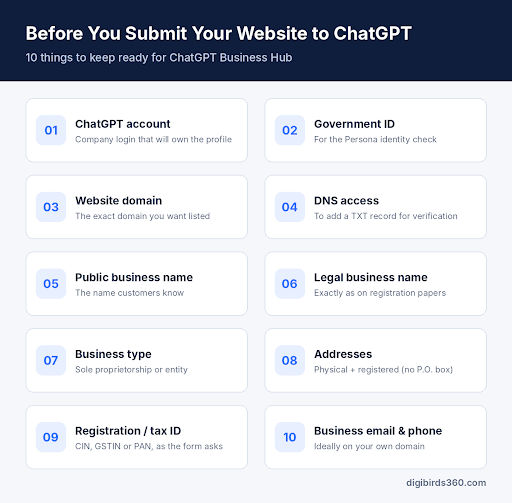
- ChatGPT account: the account that will own and manage the profile. Use a company login, not a personal one.
- Government ID: for the Persona identity check.
- Website domain: the exact domain you want listed.
- DNS access: login to GoDaddy, Hostinger, Cloudflare or your registrar, or a developer who can add a TXT record.
- Public business name: the name customers know you by.
- Legal business name: exactly as on your incorporation or GST certificate.
- Business type: sole proprietorship or entity (Pvt Ltd, LLP, partnership).
- Addresses: physical address plus registered address if different. P.O. boxes are not accepted.
- Registration or tax number: the identifier the form asks for in your country. In India this may be your CIN, GSTIN or PAN; check the field label before you type.
- Business email and phone: ideally on your own domain, e.g. info@yourbrand.com.
Pro tip: Write your 2–3 line business description in advance. Use the words your customers use, not internal jargon.
How to Submit Your Website to ChatGPT: 7 Steps
The whole process takes about 20–30 minutes of work, plus review time from OpenAI.
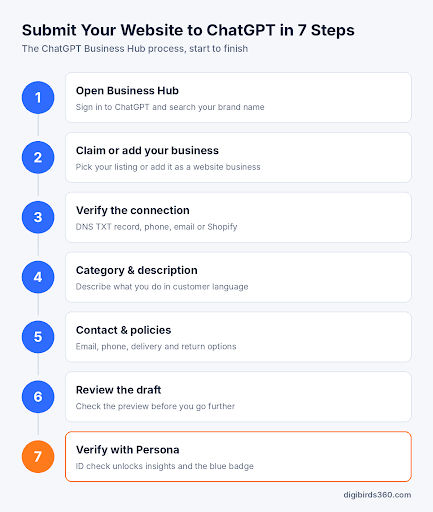
Step 1: Open Business Hub and search for your business
Sign in to ChatGPT and open the Business Hub from the sidebar (or go to chatgpt.com/business-hub). You will see a single search box that says “Search business”.
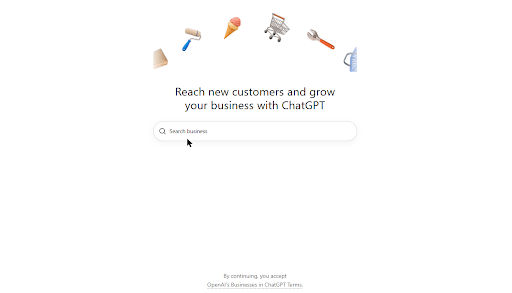
Type your brand name. ChatGPT shows matching listings with their addresses, plus a “Create” option at the top if you want to add a new business instead.
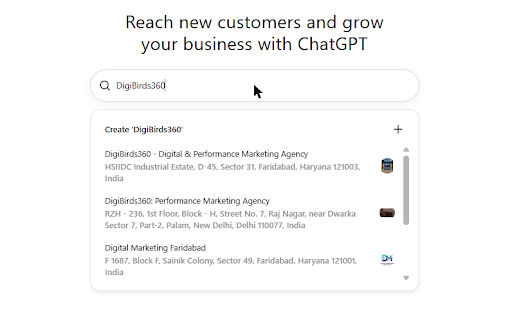
Check the results carefully. Similar-looking names from other businesses can appear in the same list. Pick only the listing whose name and address match your official records.
Step 2: Claim the listing or add a new business
Select your listing. ChatGPT opens a claim screen that explains what you get: tracking how often your business is mentioned, keeping your business info up to date, and letting a business agent answer customer questions. It also reminds you that you must verify you are authorised to represent the business.
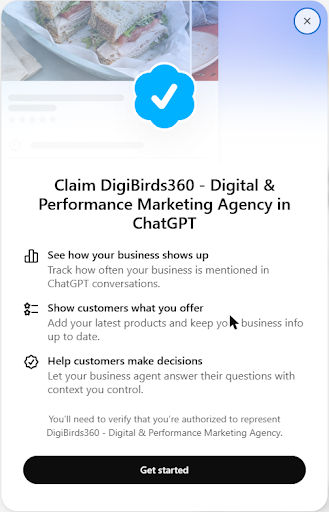
If your business is not listed and you run an eligible online business, use the Create option and choose that customers reach you through a website. If you see Contact support, the listing is locked and you need OpenAI’s help to access it.
Step 3: Verify your connection to the business
Choose one of the verification methods shown for your business:
| Method | What you do | Best for |
|---|---|---|
| Website domain | Add the TXT record ChatGPT shows to your DNS, then click Verify domain | Online businesses, agencies, SaaS, publishers |
| Business phone | Get a code by SMS or automated call | Businesses with a listed phone line |
| Business email | Get a code at the email linked to the business | Brands with a domain email |
| Shopify store | Connect Shopify and log in to the store | Shopify merchants |
For the domain route, copy the record type, name/host and value exactly. DNS changes can take a few minutes to a few hours to show up. If your developer or hosting partner manages DNS, send them the record.
Step 4: Choose your category and write your description
Pick the closest category from the list (for an agency, something like Marketing agency). Then add your description. ChatGPT may share these details in relevant conversations, so describe what you do, for whom and where, in plain customer language.
Example: “DigiBirds360 is a digital marketing agency in Noida and Faridabad offering SEO, AEO/GEO, paid ads, social media and content marketing for Indian brands.”
Step 5: Add contact details and policies
Add your business email and phone. You may also be asked about delivery and return policies. Choose the option that truthfully fits; for a service business this is usually no delivery and no returns. Check the live preview before moving on.
Step 6: Review the draft
ChatGPT saves the profile as a draft and takes you to the business overview. Drafts can still be deleted; published profiles cannot be removed by support, so review carefully.
Step 7: Complete Persona verification
The last step is the identity check through Persona. It unlocks publishing, insights and the blue badge, so it gets its own section below.
Persona Verification and the Blue Badge
Claiming a business alone does not give you the blue check. The verified badge appears only after your Persona identity verification is approved. Until then you cannot publish changes, view insights or create a Business Agent.
- In the business overview, select Verify with Persona, then Continue to Persona.
- Scan the QR code or open the secure link on your phone. You need camera access but no app download.
- Upload your government ID and follow Persona’s on-screen checks.
- Enter business details: name and DBA (trading name), country, business type, tax or registration number, website, physical address and registered address.
- Submit and wait for OpenAI’s email with a decision or a request for more information.
Important: If you created a new profile through Persona, OpenAI’s approval publishes it automatically. There is no separate publish button, so double-check every field first.
If verification fails, the most common reason is a mismatch. Make sure the business name, address and registration number match your official records exactly, then use Try again if it is offered.
Understanding ChatGPT Business Hub Insights
Once your claim and Persona verification are approved, the Insights tab shows aggregate activity for the past 28 days. There are three metrics.
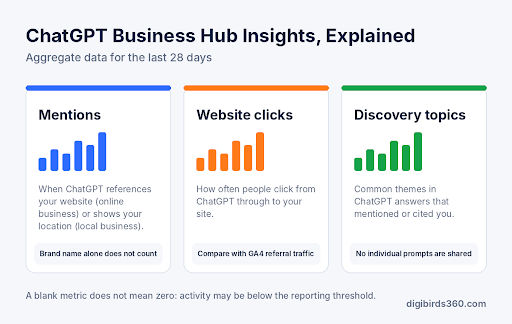
| Metric | What it counts | What it tells you |
|---|---|---|
| Mentions | Online business: each time ChatGPT references your website (brand name alone does not count). Local business: each time ChatGPT shows your location. | How often you appear in AI answers |
| Website clicks | Clicks from ChatGPT through to your site | Whether mentions turn into traffic |
| Discovery topics | Common themes in answers that mentioned or cited you | Which topics ChatGPT links you with |
A blank metric is not zero. It can mean activity is below the reporting threshold or data is still being collected.
You never see individual prompts or chats. All data is aggregated for privacy.
How we use it at DigiBirds360: compare the same 28-day window with ChatGPT referral traffic in GA4. If mentions rise but clicks stay flat, the page ChatGPT cites may need a stronger hook or clearer next step. Discovery topics also show content gaps worth targeting in your blog and service pages.
How to Give Your Team or Agency Access
The admin who claimed the business can invite teammates and grant an agency access, much like owners and managers in Google Business Profile.
- Open your business overview in Business Hub.
- Click Invite in the top-right corner.
- Enter the teammate’s or agency’s email address and send the invite.
Each person should use their own ChatGPT account. Never forward your personal claim invitation to someone else. If the business was claimed inside a ChatGPT workspace, invitees may need to be members of that workspace.
Does Claiming Your Business on ChatGPT Help SEO and GEO?
Not directly, but it is a foundation worth laying now. OpenAI is clear that claiming does not guarantee more visibility, and ChatGPT may still use other sources when describing your brand. Your Business Hub profile is one input among many.
That is exactly why it matters. If your website, Google profile, LinkedIn, directories and press mentions all say slightly different things, ChatGPT has to guess. A verified profile gives it one trusted reference point. Our 6-point GEO action plan after you claim your profile:
- Align your NAP everywhere. Use the same name, address and phone on your website, Google Business Profile, Justdial, IndiaMART, LinkedIn and social pages.
- Mirror your Business Hub description on your About page. Same positioning, same service words, same cities served.
- Explain rebrands clearly. If you changed names, state the old and new names on your site so AI tools connect them.
- Add Organization schema with sameAs links to your official profiles.
- Build answer-ready pages. Short, direct answers to the questions your buyers ask, with FAQs and clear headings.
- Earn third-party citations. Reviews, digital PR and industry mentions are what AI tools read when they compare brands.
- Track results monthly: Business Hub mentions and clicks, GA4 traffic from chatgpt.com, and branded search in Google Search Console.
6 Common Mistakes to Avoid
- Using a personal ChatGPT account to claim the business. If that person leaves, access leaves with them.
- Claiming the wrong listing. Similar names can show up in search; match the address before you click.
- Entering the wrong tax ID. The placeholder can look like a US EIN. Enter the identifier your country’s field actually asks for.
- Mismatched legal name or address. Copy them exactly from your registration documents.
- Rushing Persona. Approval can auto-publish a new profile, so review everything first.
- Treating it as a ranking hack. Claiming does not buy visibility. Consistent information and strong content still do the heavy lifting.
Conclusion: Claim Your Spot in ChatGPT Early
ChatGPT Business Hub is the first official way to tell ChatGPT who your business is. It won’t push you to the top on its own, but it gives you a verified profile, accurate details and real data on how often AI mentions you. For online-only Indian brands that never fit Google Business Profile, that alone is a big step.
Submit your website to ChatGPT now, keep your information consistent across the web, and track mentions alongside your GA4 data. The brands that set this up early will have a cleaner record to build on as AI search grows.
Need help getting your brand visible in ChatGPT, Gemini and Google AI Overviews? DigiBirds360’s AEO and GEO team can claim and optimize your Business Hub profile and build an AI visibility plan for your brand. Get a free consultation or chat with us on WhatsApp at +91 8851181429.
Sources
- OpenAI: Introducing Businesses in ChatGPT
- OpenAI Help Center: Setting up your business on ChatGPT